
Customizing your store’s design helps improve the user experience and strengthen your brand. One simple way to do this is by adding a custom font. This article explains how to add a custom font to your store.
Open Settings
Go to your StoreLink dashboard and click on Settings > Integrations where you will see the option to add a custom script. Click on Connect to add your code.
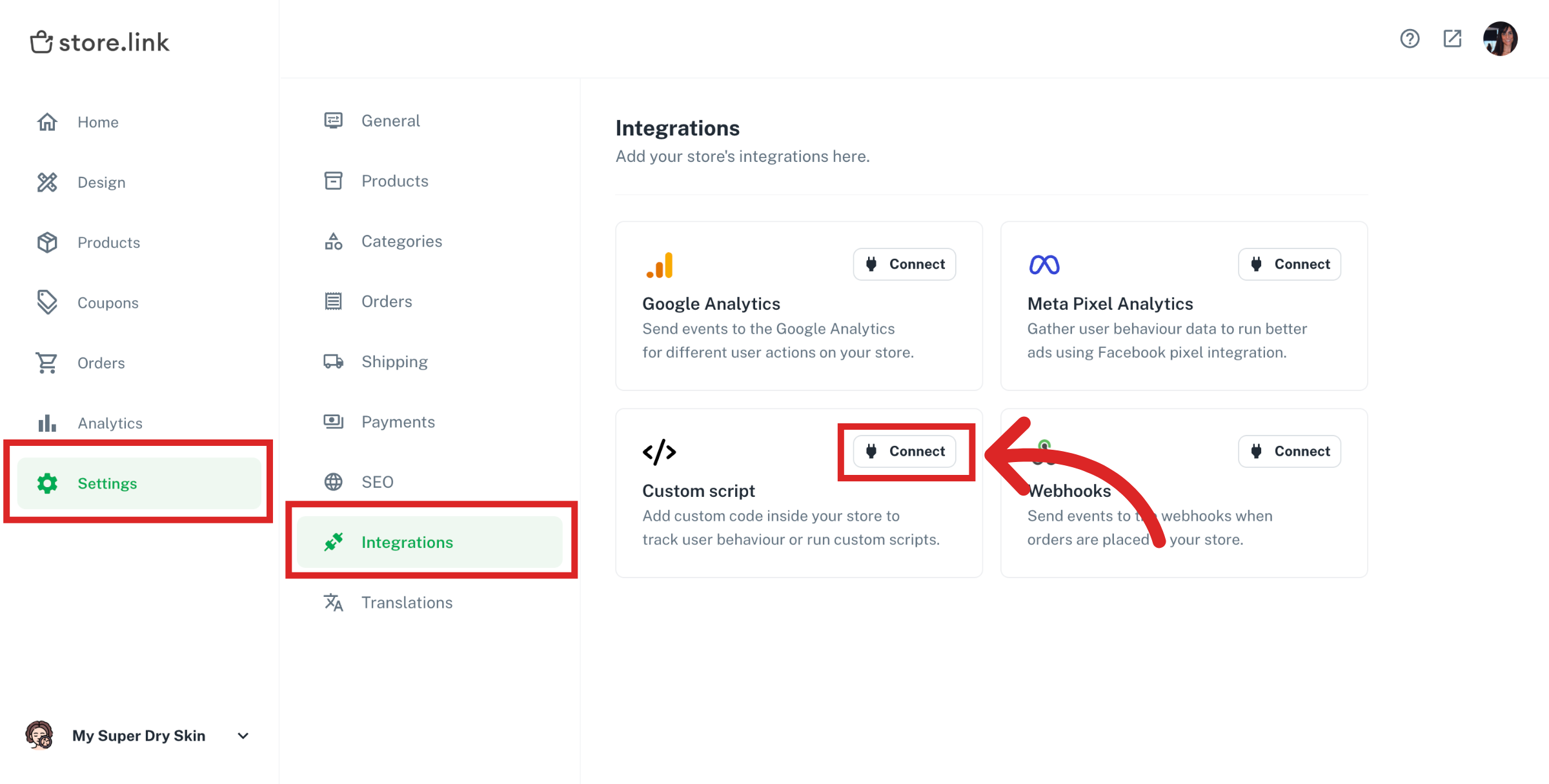
Add Custom Script
Here you will be adding a piece of code snippet that will load a custom font using Google fonts or any other CDN that serves the fonts. Here is an example:
<style>
@import url('https://fonts.googleapis.com/css2?family=Geist:[email protected]&display=swap');
body {
font-family: "Geist", monospace;
}
</style>
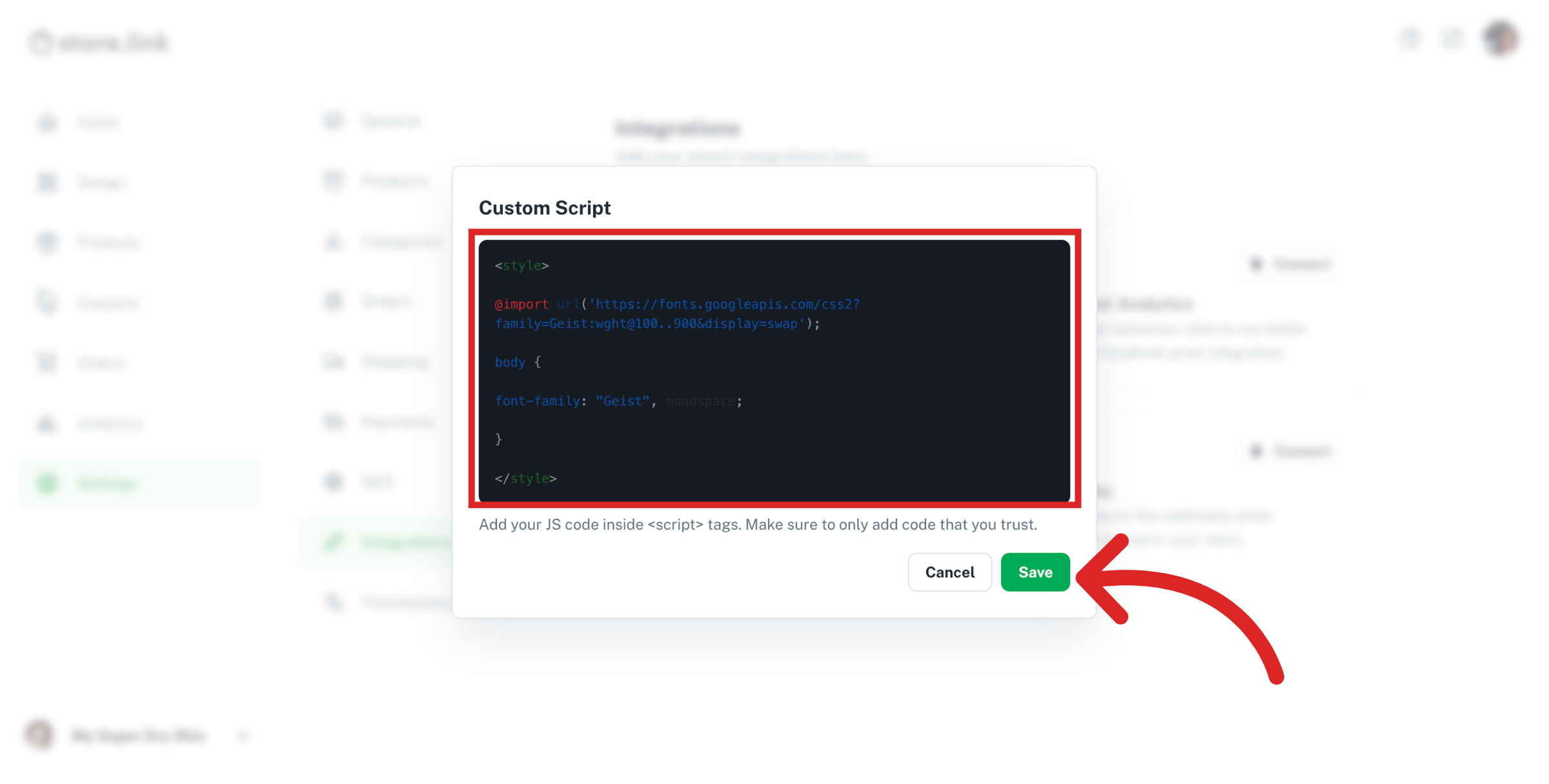
Once you have your code snippet, you can copy and paste this code inside the <script> tags into Custom Script. Don't forget to click on Save when you're finished making changes.
Below is a sample code we use to demonstrate how it should look inside the Custom Script panel:
Still need help?
Contact us