Creating an online store with StoreLink is quick and requires no coding. You can build a fully functional e-commerce website using a simple Google Sheet and start accepting orders in minutes. This guide will walk you through how to set it up.
Create a New Store
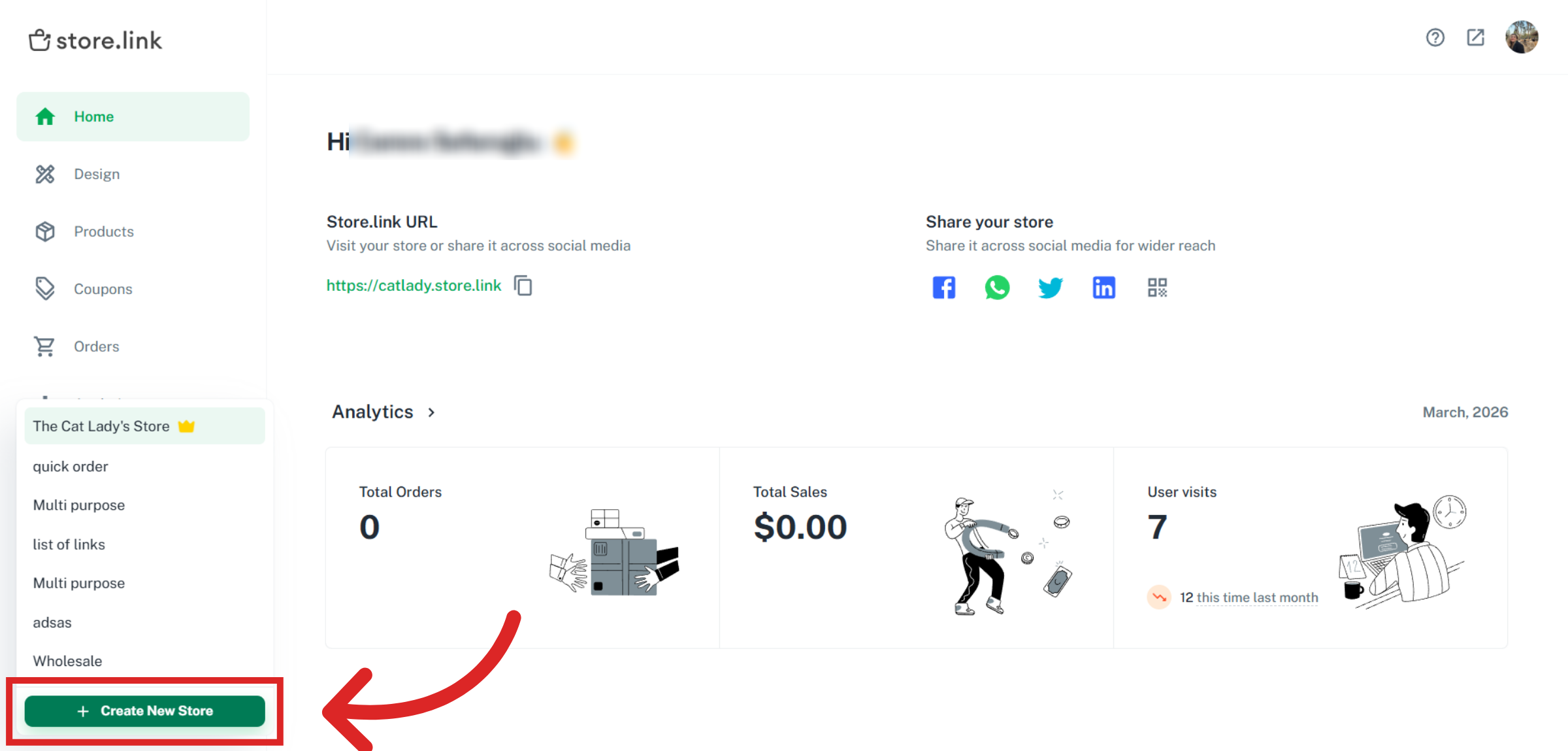
Log in to your StoreLink account and head to your dashboard. At the bottom left corner of your screen, click the Create New Store button to start.
Add Store Details
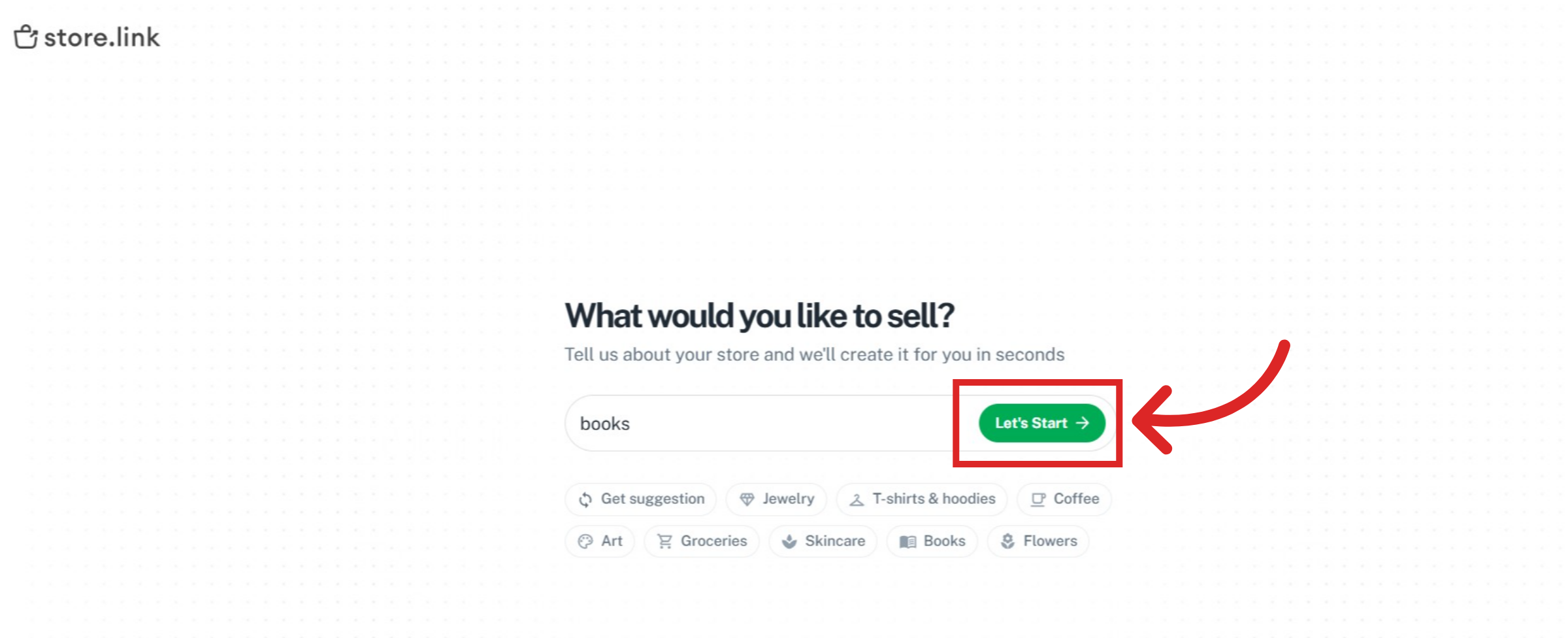
Choose what you'd like to sell. This helps StoreLink configure the right defaults and product structure for your type of business. Click Let's Start once you're done.
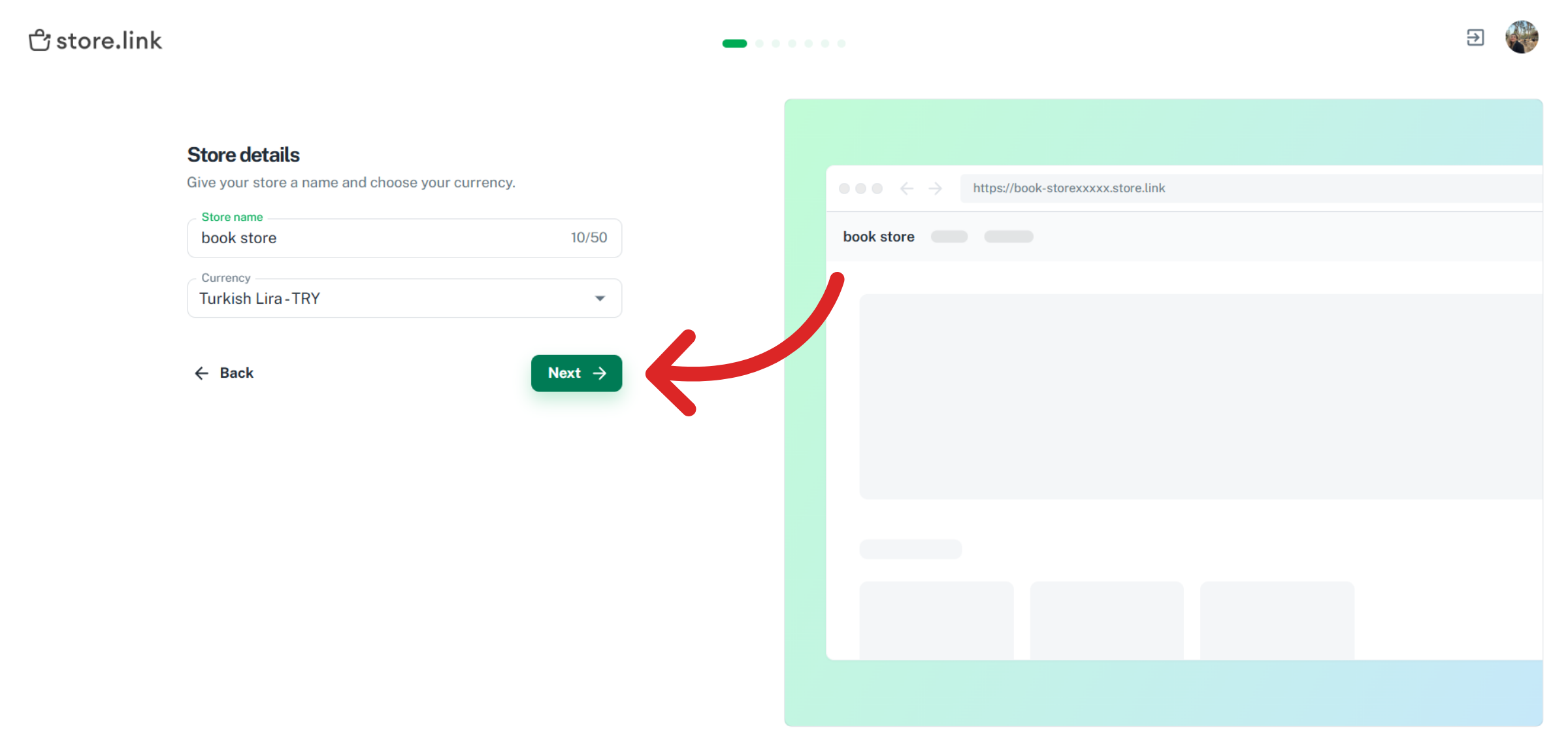
Enter a store name. This will appear in your store URL and on your storefront. Then choose the currency your store will use for pricing and checkout. Once you're happy with both, click Next to continue.
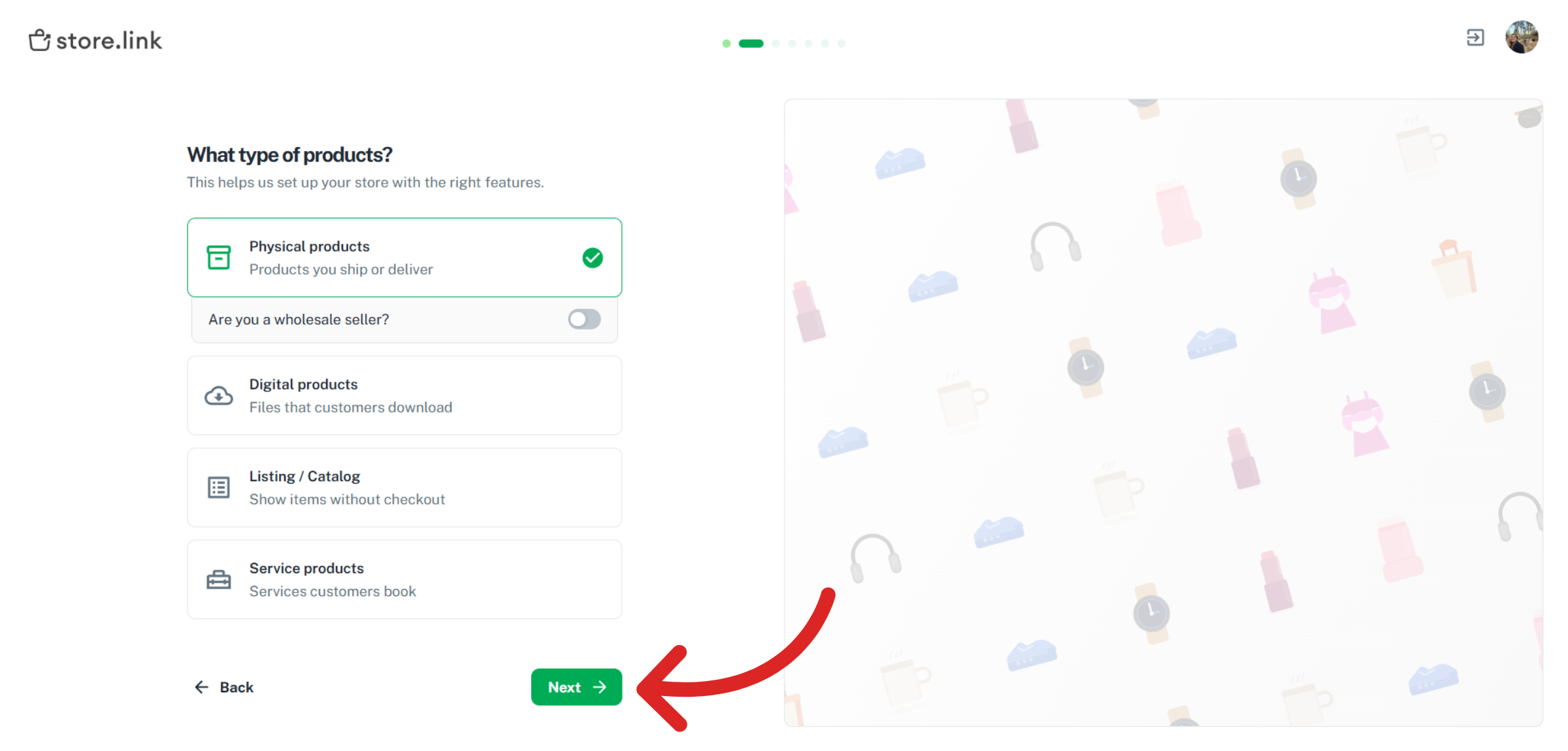
Select the type of products you'll be selling. This determines what fields and options are available when you add products.
Physical products are items that you ship or deliver to customers, such as clothing, accessories, or packaged goods.
Wholesale can be enabled if you sell in bulk. This adds extra features like minimum order quantity.
Digital products are items customers can download, such as eBooks, digital art, templates, or audiobooks.
Listing / Catalog is ideal if you want to showcase items without a checkout flow, such as real estate listings, affiliate directories, or team directories.
Service products are used for bookings or appointments, such as salon services, consultations, or personal training sessions.
Add Products
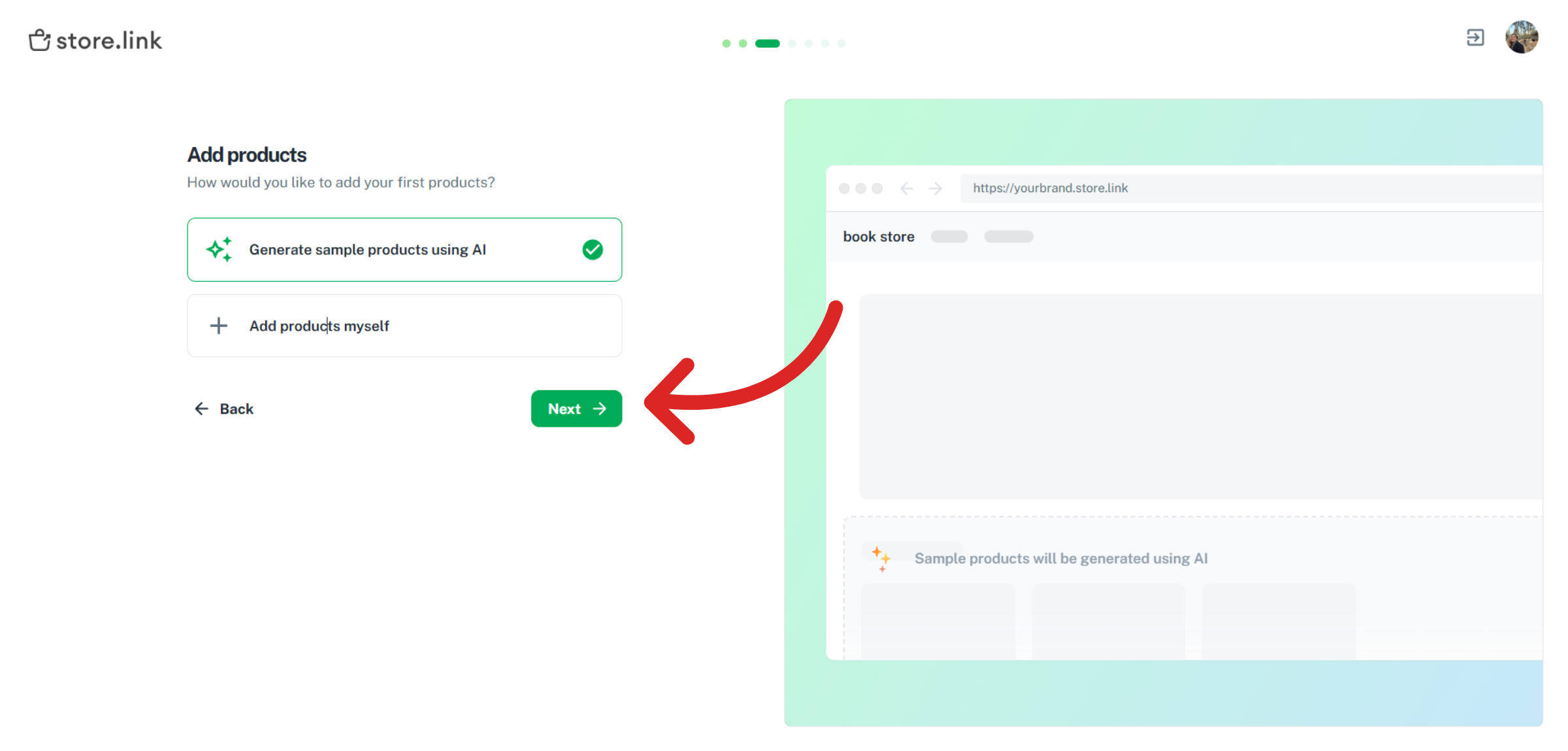
Now it's time to populate your store. You'll be presented with two options; add products yourself or let AI do the heavy lifting. If you are not ready to add real products yet, StoreLink's AI can instantly generate a set of sample products so your store looks complete from day one.
Select Shipping Option
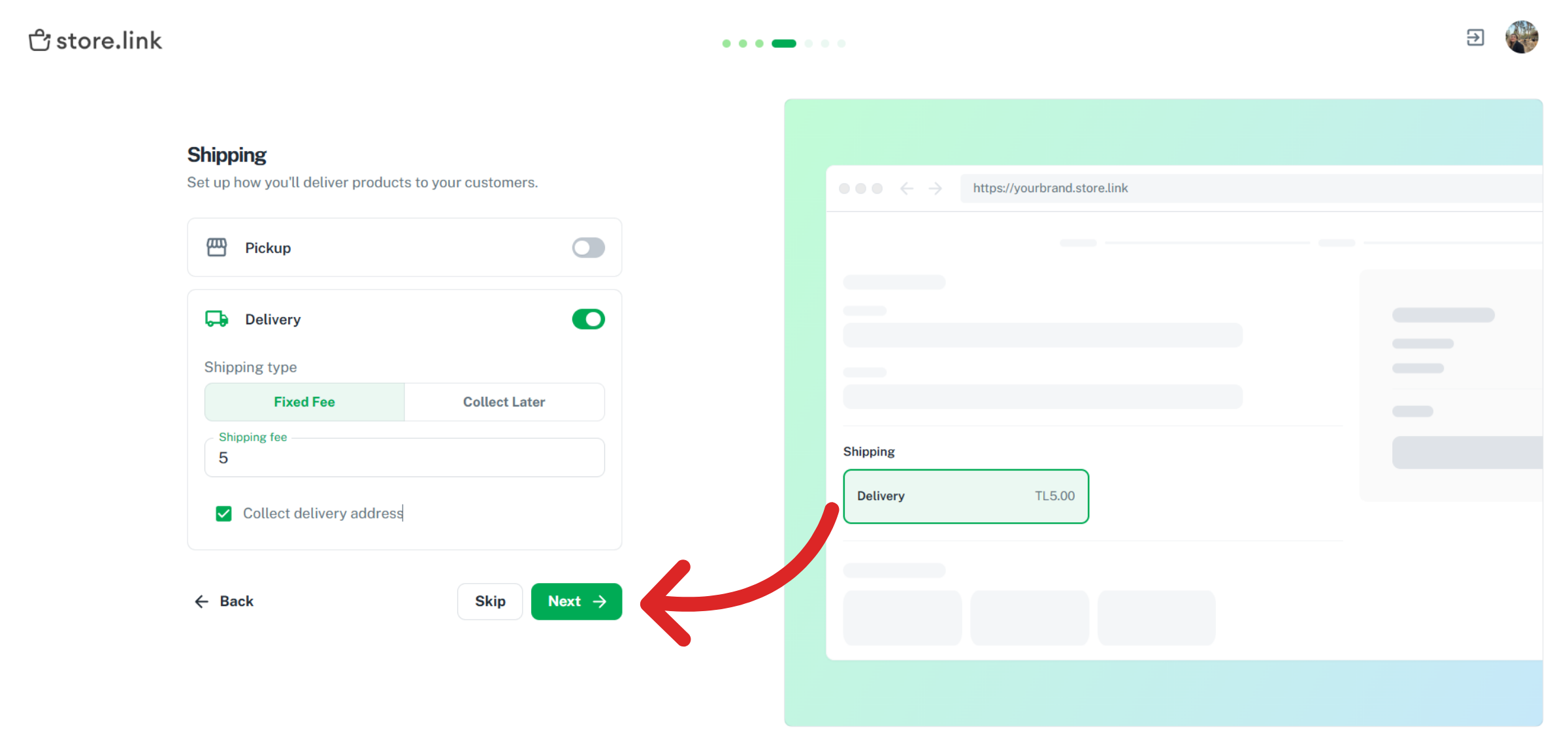
Select how customers will receive their orders. You can choose between two fulfilment options: Pickup and Delivery. If you choose Pickup, customers will collect their order directly from your location. If you choose delivery, orders will be shipped to your customers' addresses.
Select Payment Method
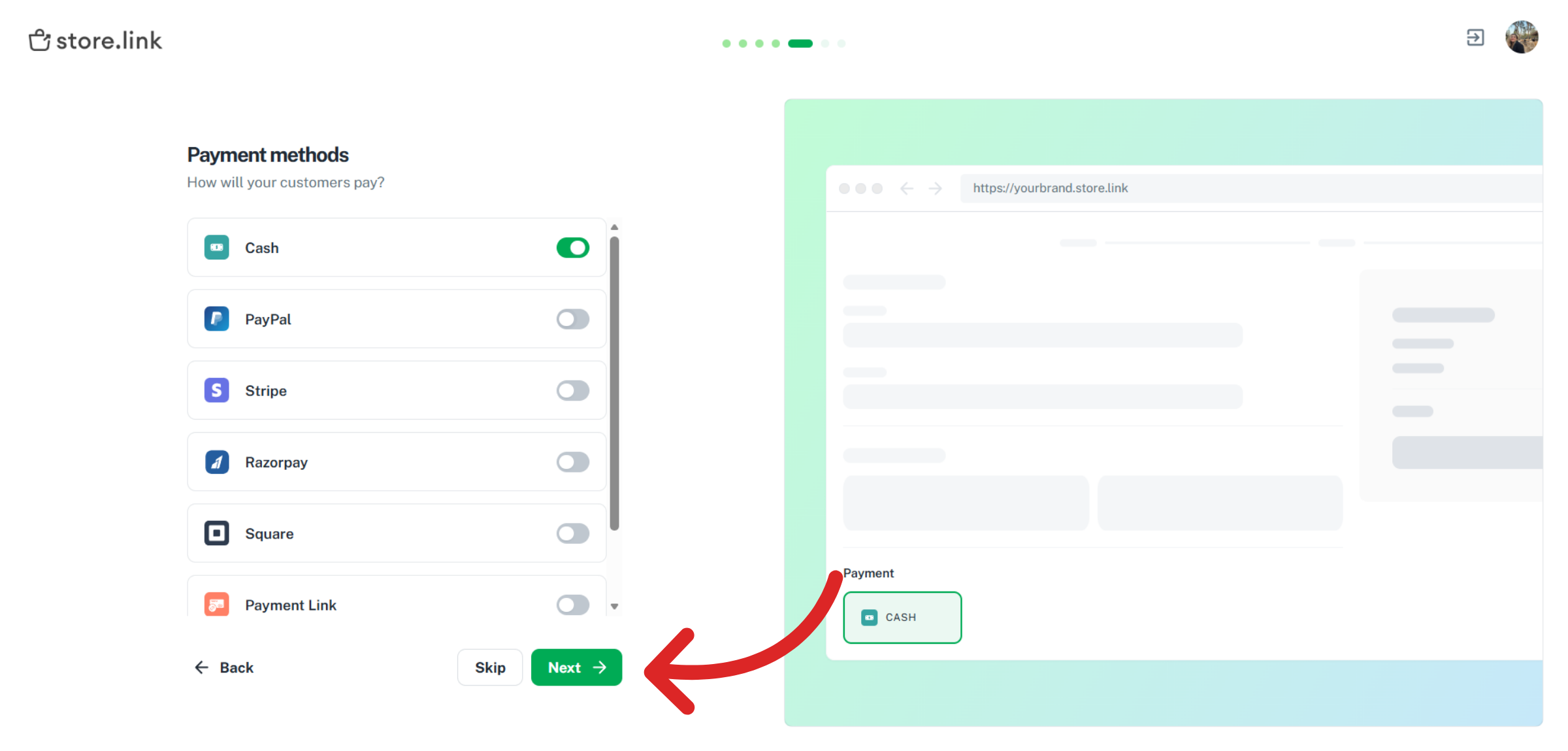
Select how you'd like to accept payments from customers. StoreLink supports a range of popular payment options to suit customers wherever they are in the world. You can also skip and configure them later on.
Choose Order Notification Method
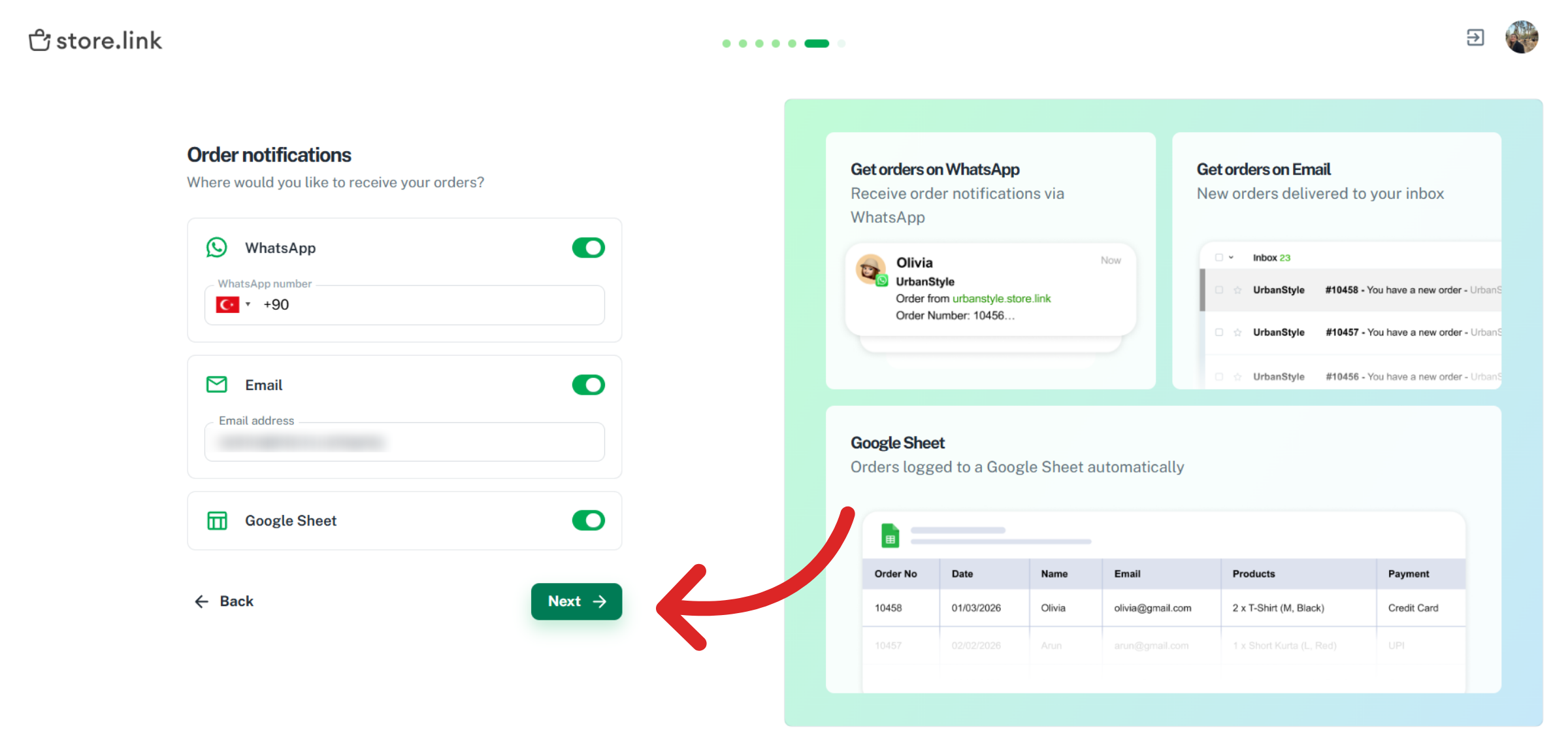
Finally, select where you'd like to be alerted when a new order comes in. Enter your contact details for your preferred channel and StoreLink will notify you every time a customer places an order.
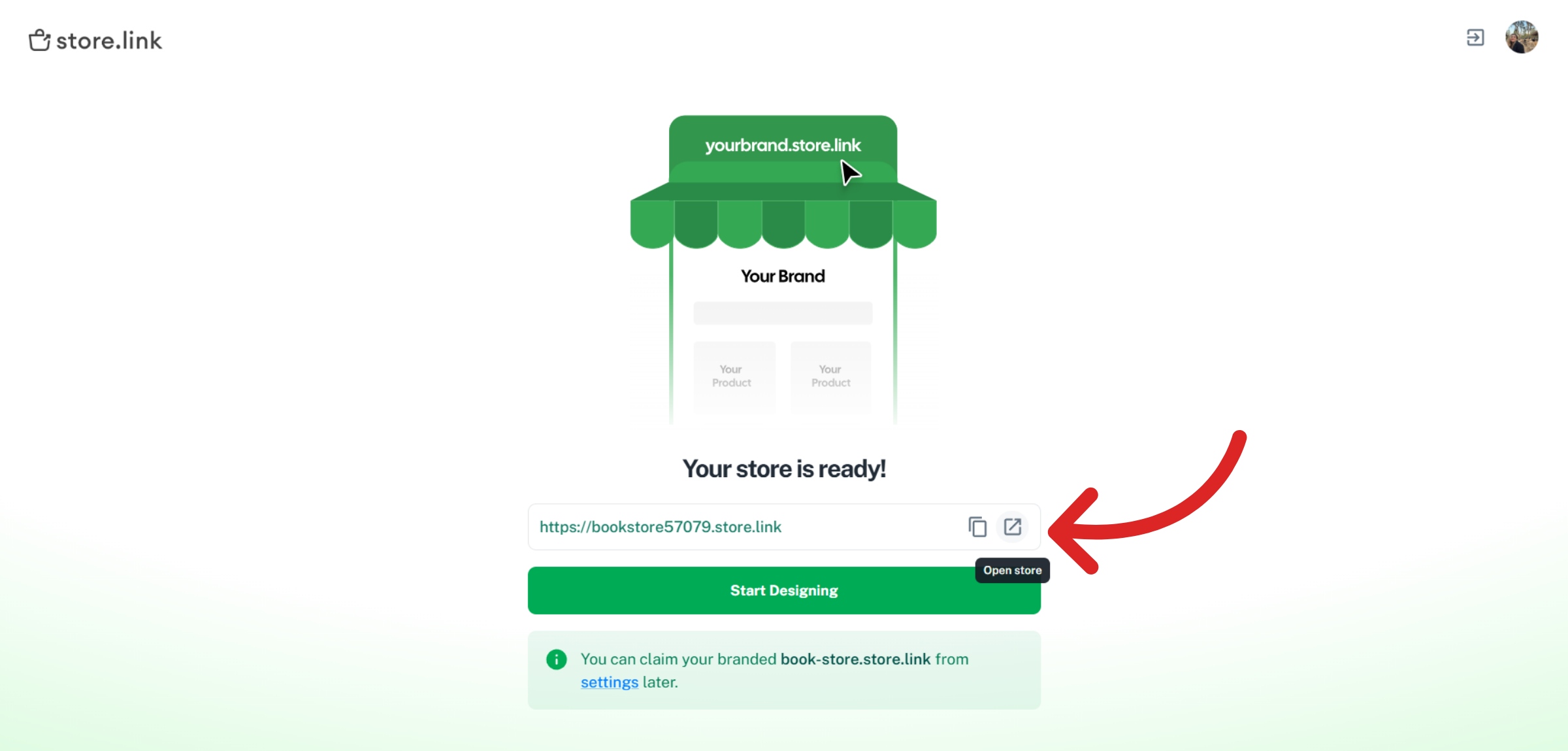
Your store is now configured and ready to go. Click Open Store to view your live storefront and see exactly what your customers will experience when they visit.
Still need help?
Contact us