StoreLink lets you edit almost every part of an order, including products, quantities, customer details, shipping information, and more. This article will guide you through the editing process.
Open the editor
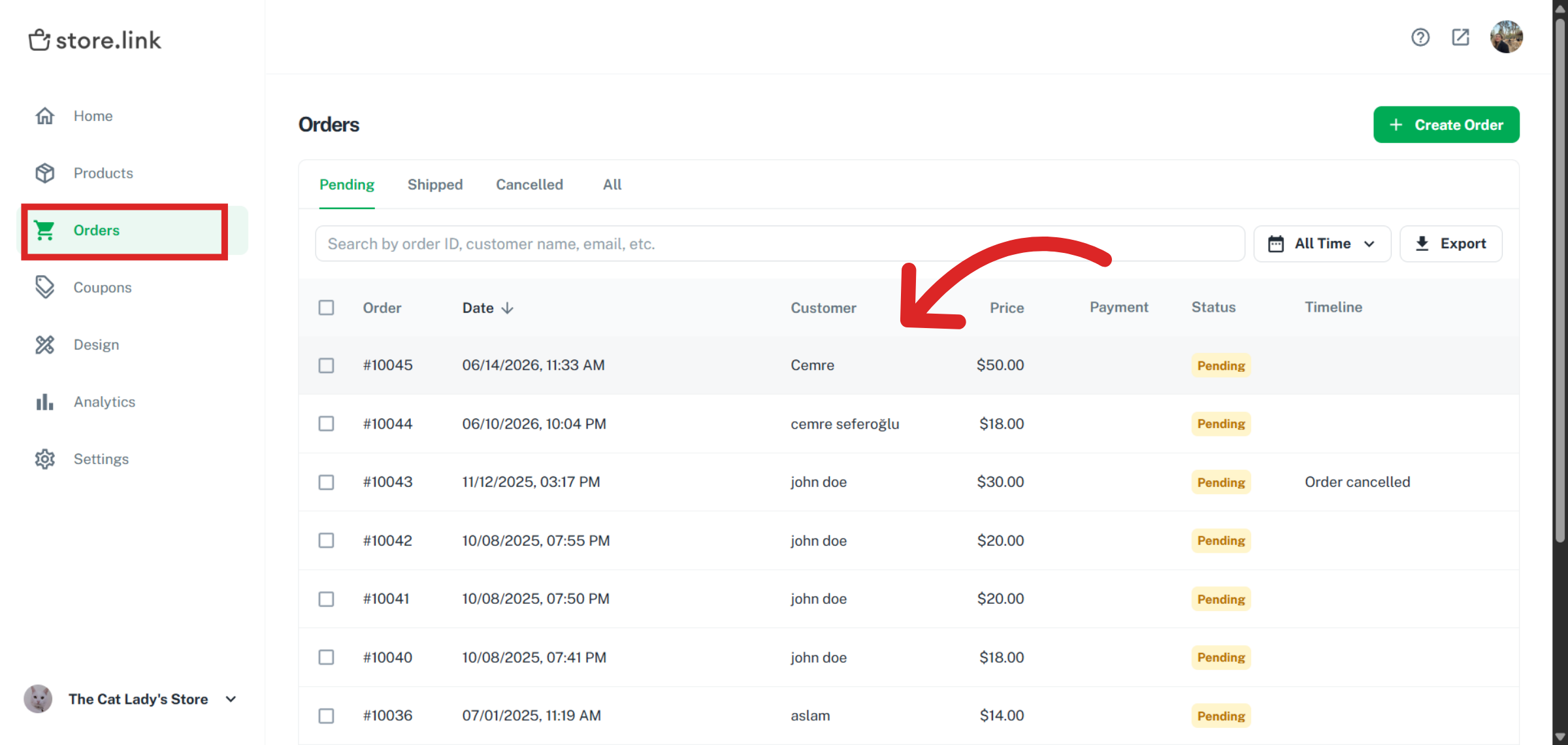
To start editing an order, go to your dashboard and click on Orders. This will bring up a list of all existing orders. Select the specific order you want to modify.
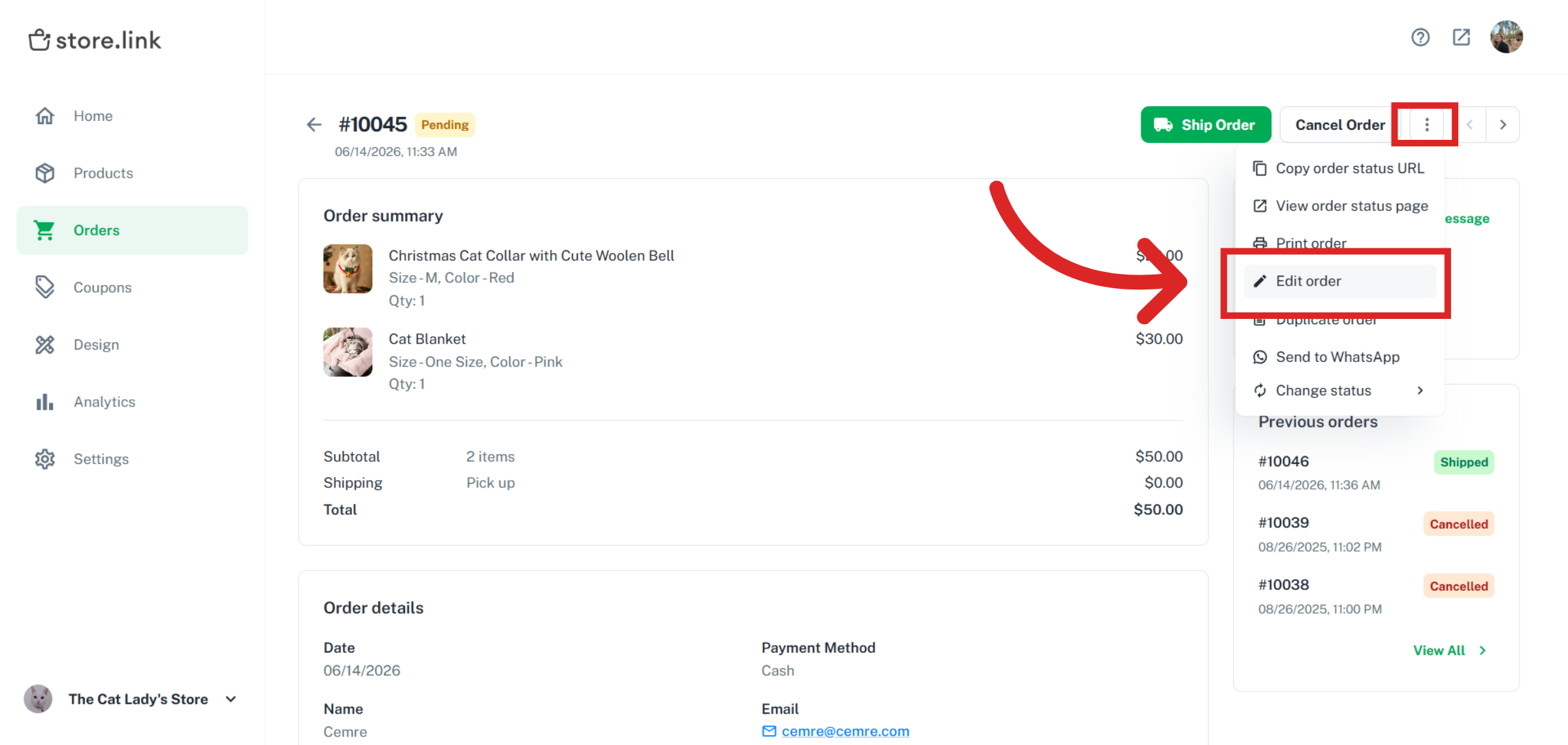
Once you are inside the order details page, look at the top right corner and click the three dots icon. From the menu that appears, choose Edit Order.
Edit products
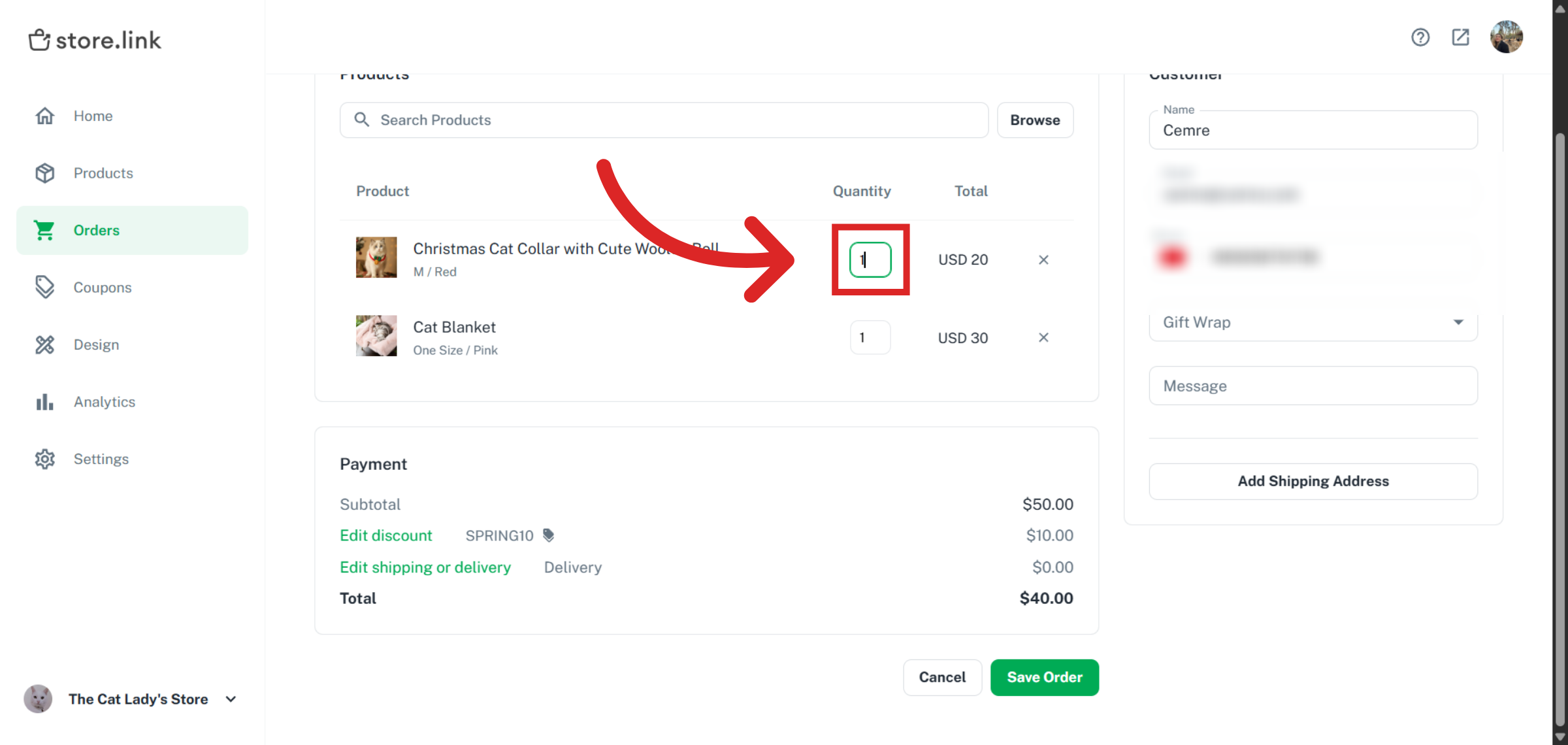
After entering edit mode, you will see the Products section where all items in the order are listed. If you want to remove a product, you can simply click the small “x” next to that item.
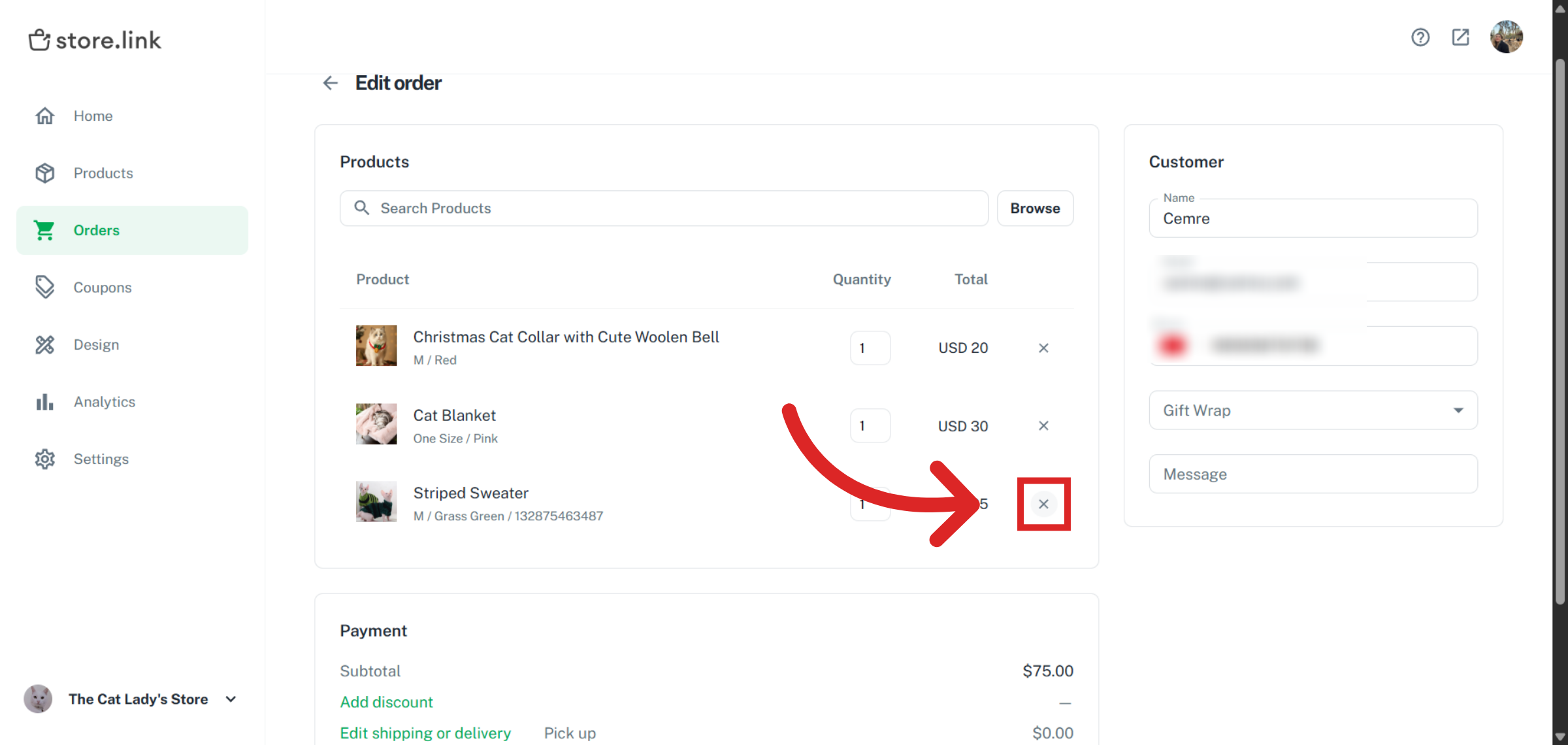
If you need to add new products, you can use the search bar to find items in your catalog and add them directly to the order.
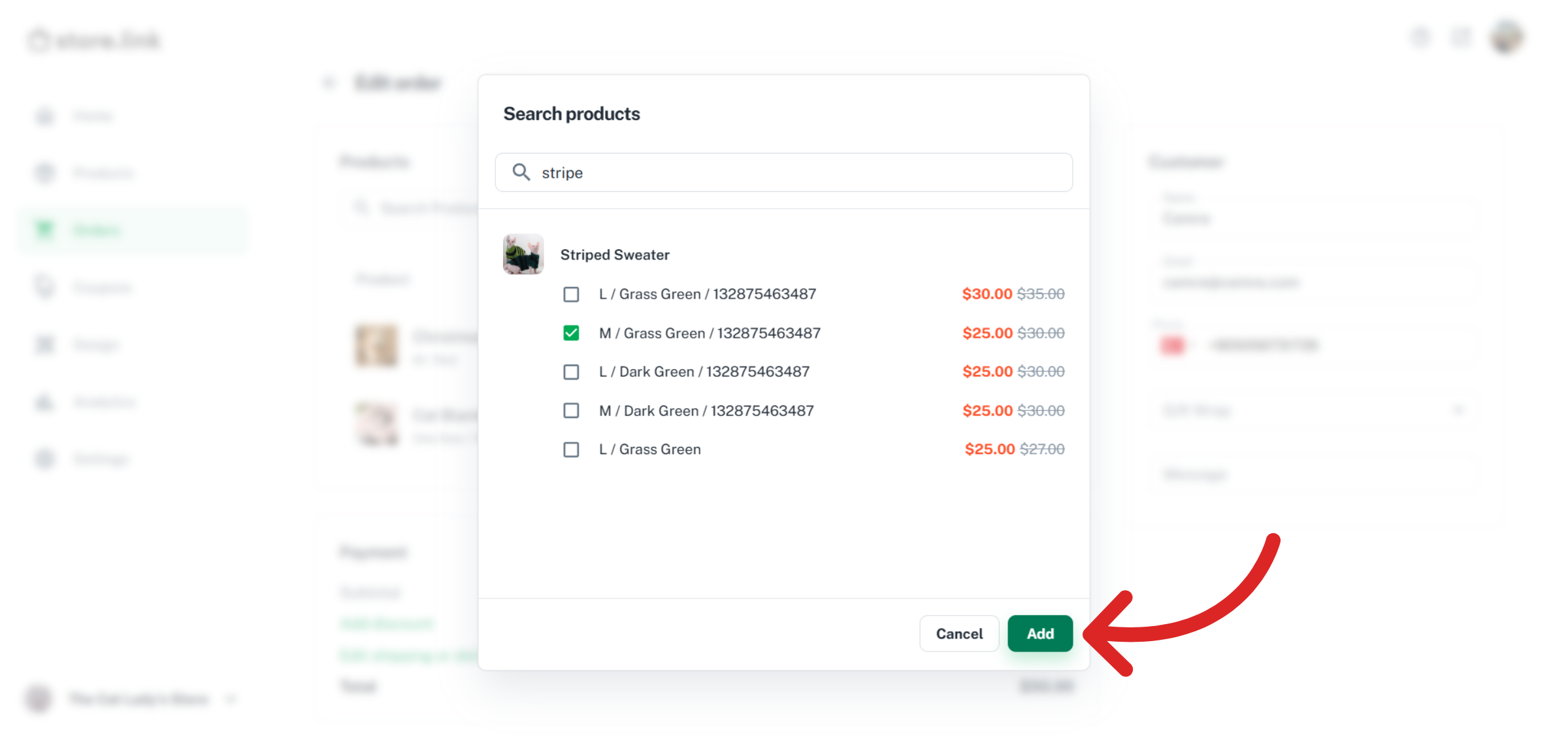
You can also update quantities for any product to match the correct amount.
Edit payment details
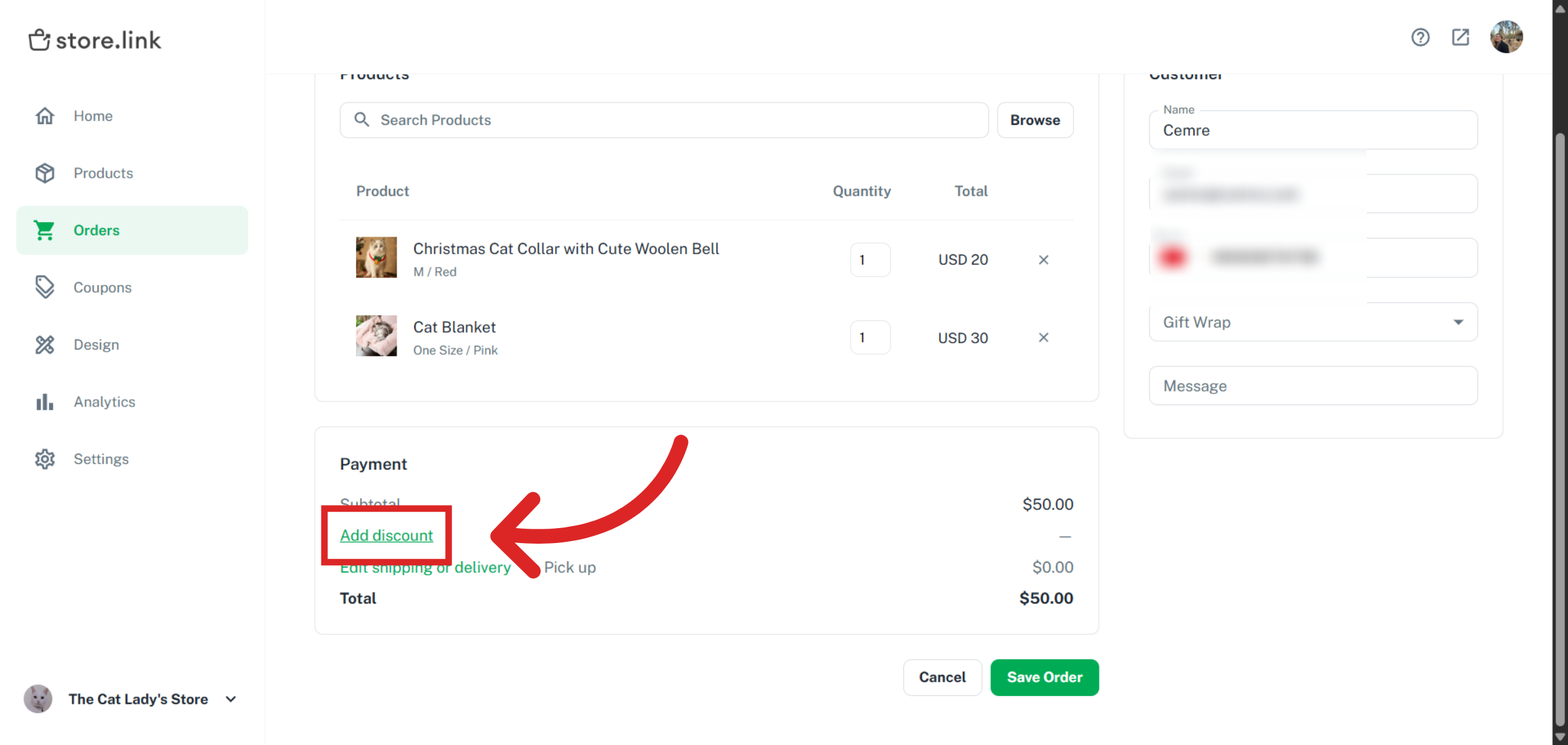
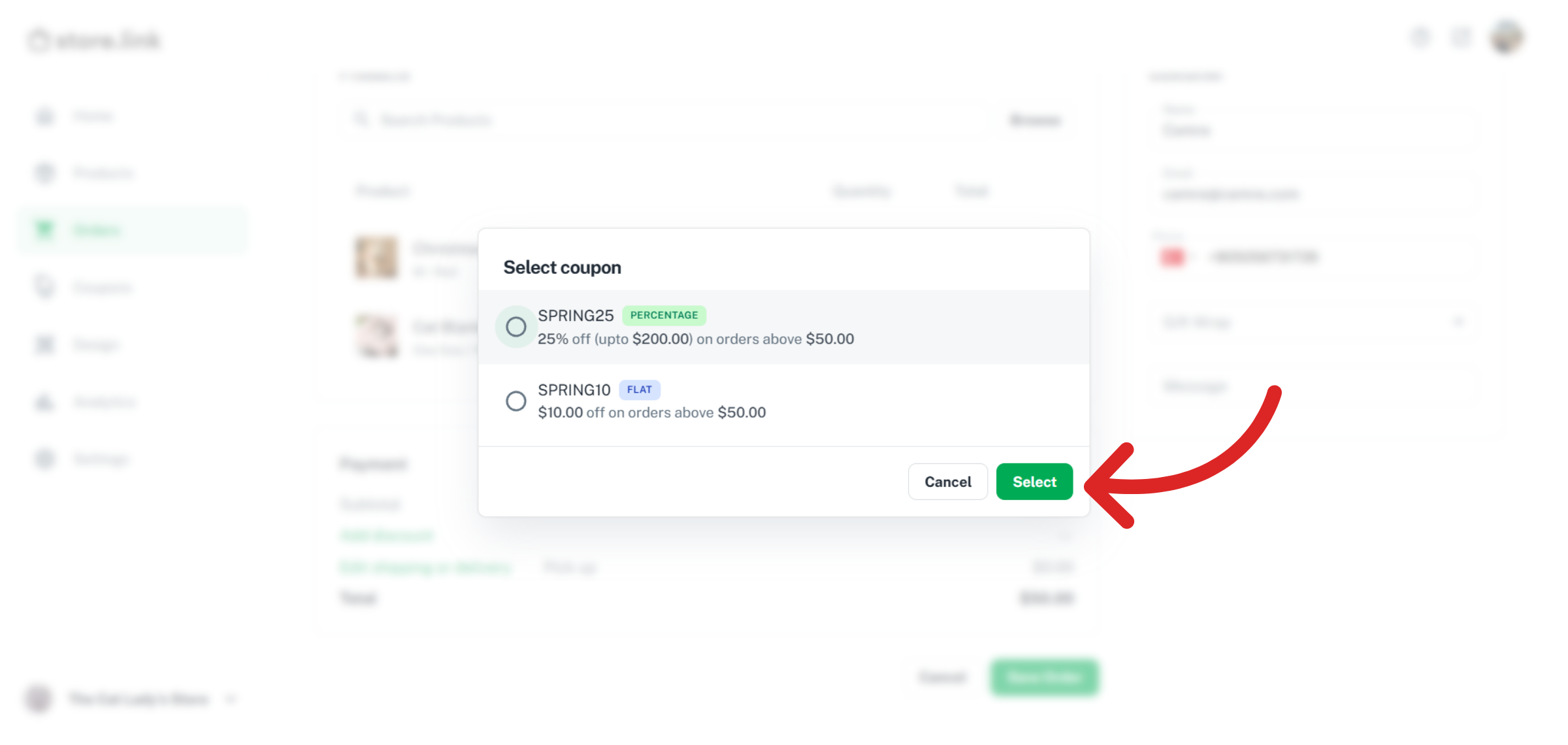
In the Payment section, you can make adjustments related to pricing and checkout conditions. Click on Add discount to apply coupon codes to the order.
Choose the coupon you would like to use and click Select.
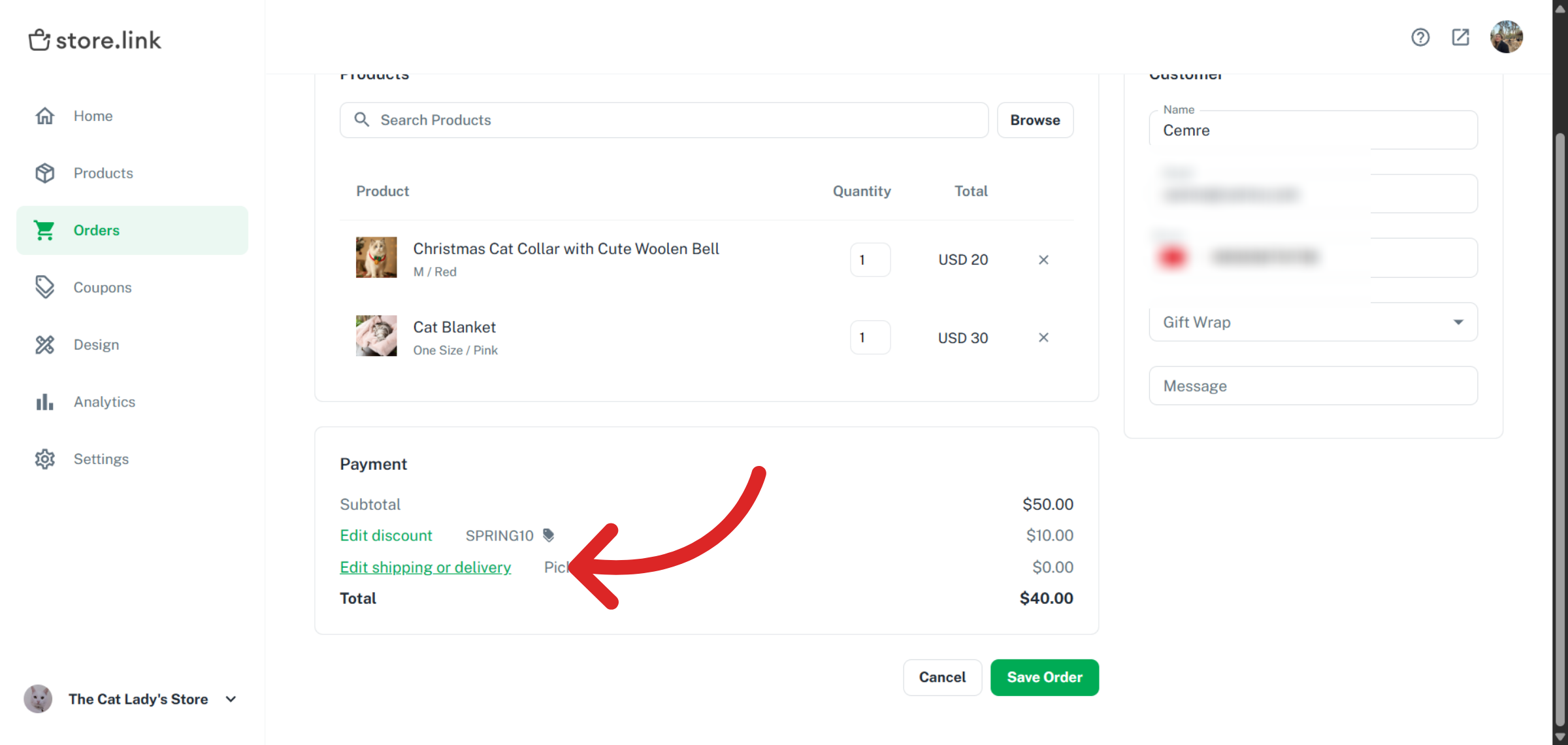
Click Edit shipping or delivery to update or modify shipping-related payment information depending on the requirements of the order.
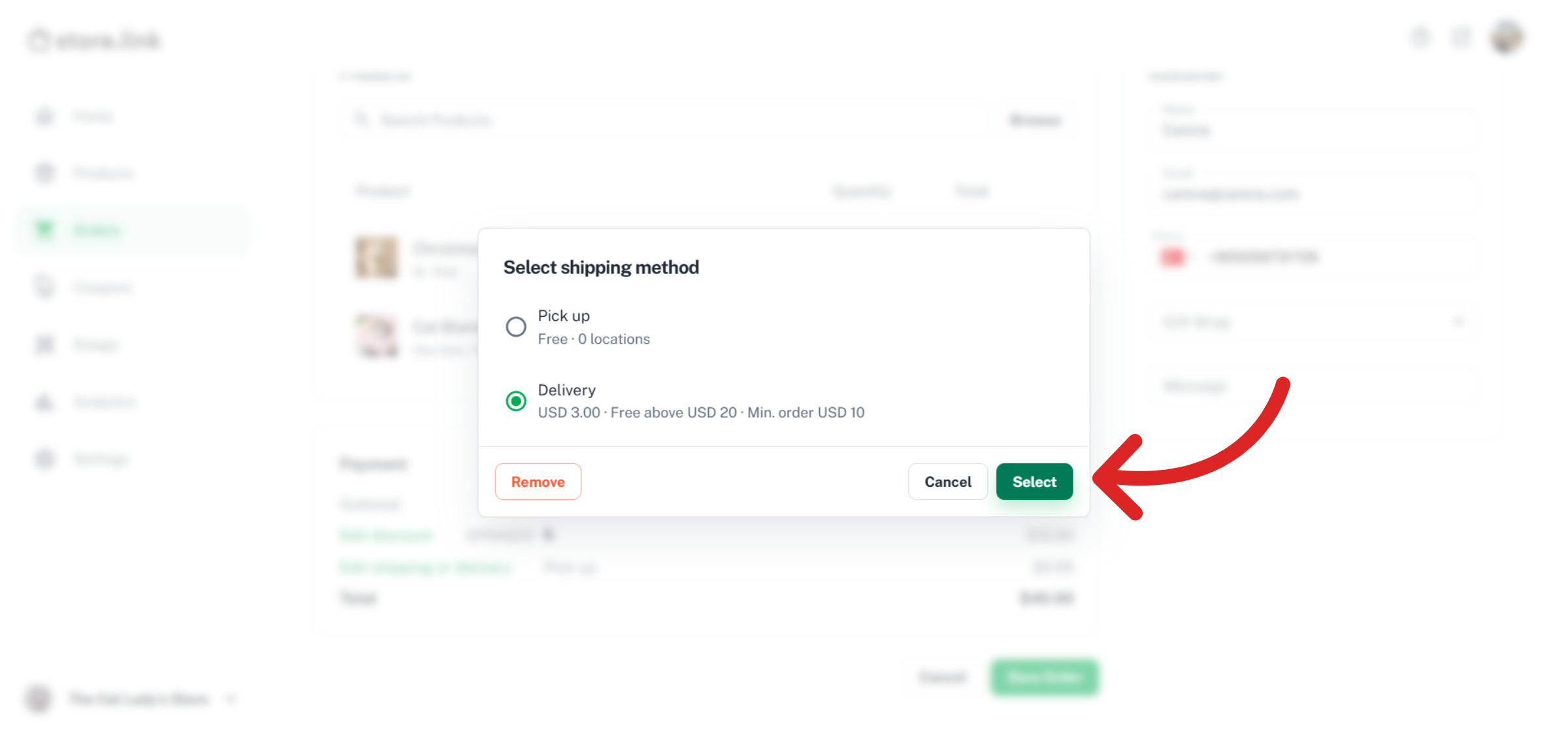
Choose the appropriate shipping method and click Select.
Edit customer details
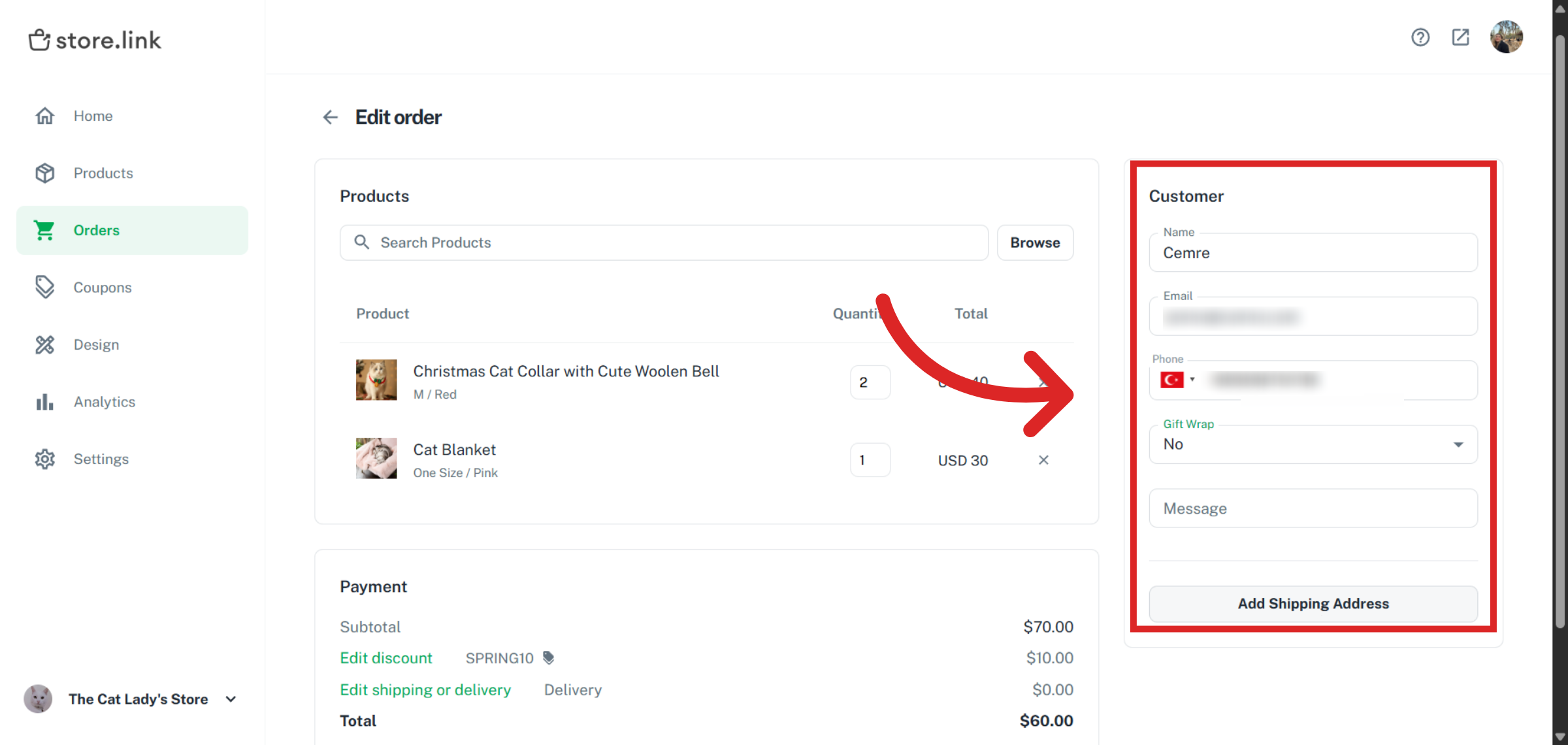
On the right side of the order editor, you will find the Customer section. Here, you can update key details such as the shipping address, customer name, email, and phone number.
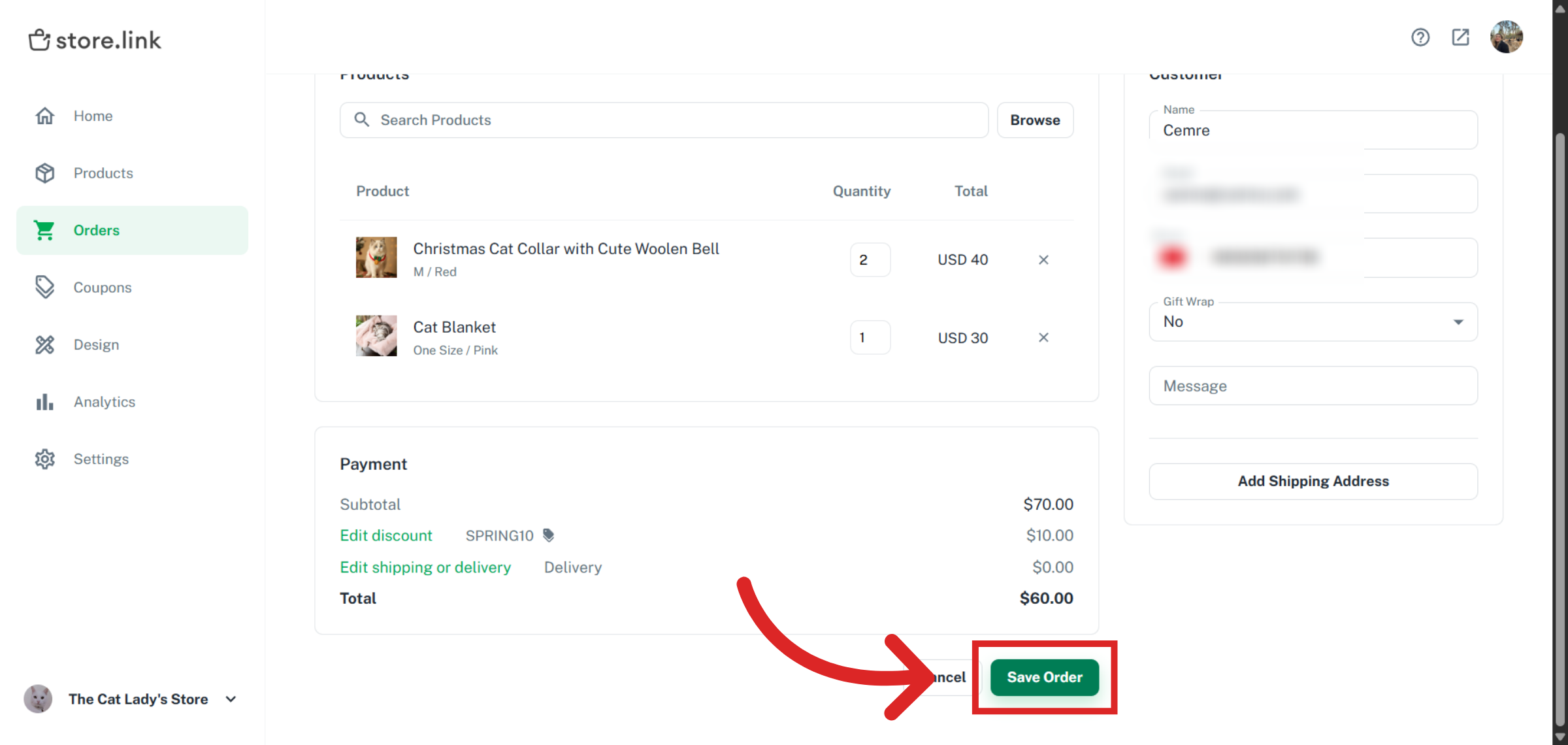
Don't forget to click Save Order once you have finished making all necessary updates.
Note
After making changes, don't forget to check the order again to confirm the updated products, customer details, and shipping information are correct.
Still need help?
Contact us