
Banner slides can include a button that directs visitors to a specific page or URL on your StoreLink store. You can customize the slide title, description, button text, and button destination from your store's design settings. Here's how:
Open Banner Slide settings
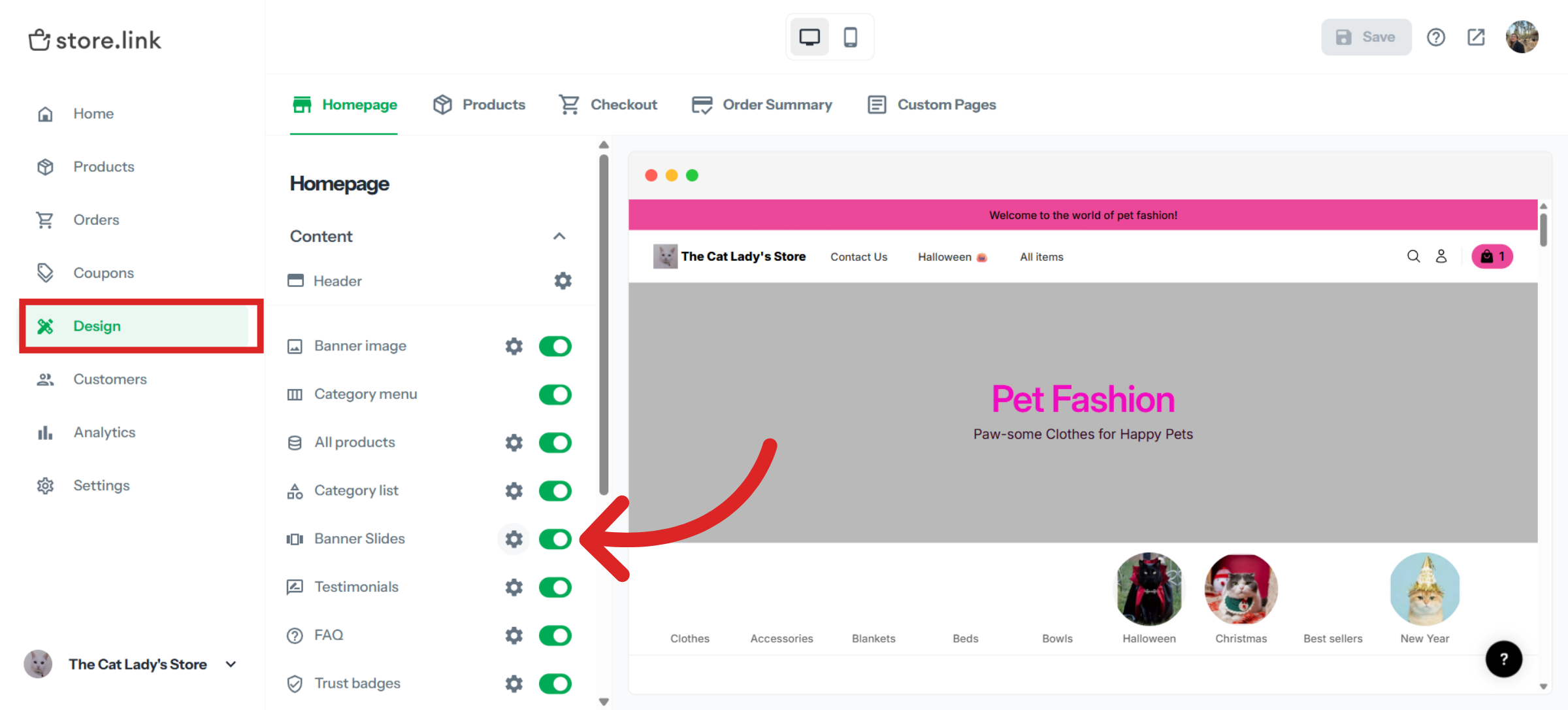
Go to your StoreLink dashboard and open Design. Find Banner Slides and click the gear-shaped icon next to it.
Edit a Banner Slide
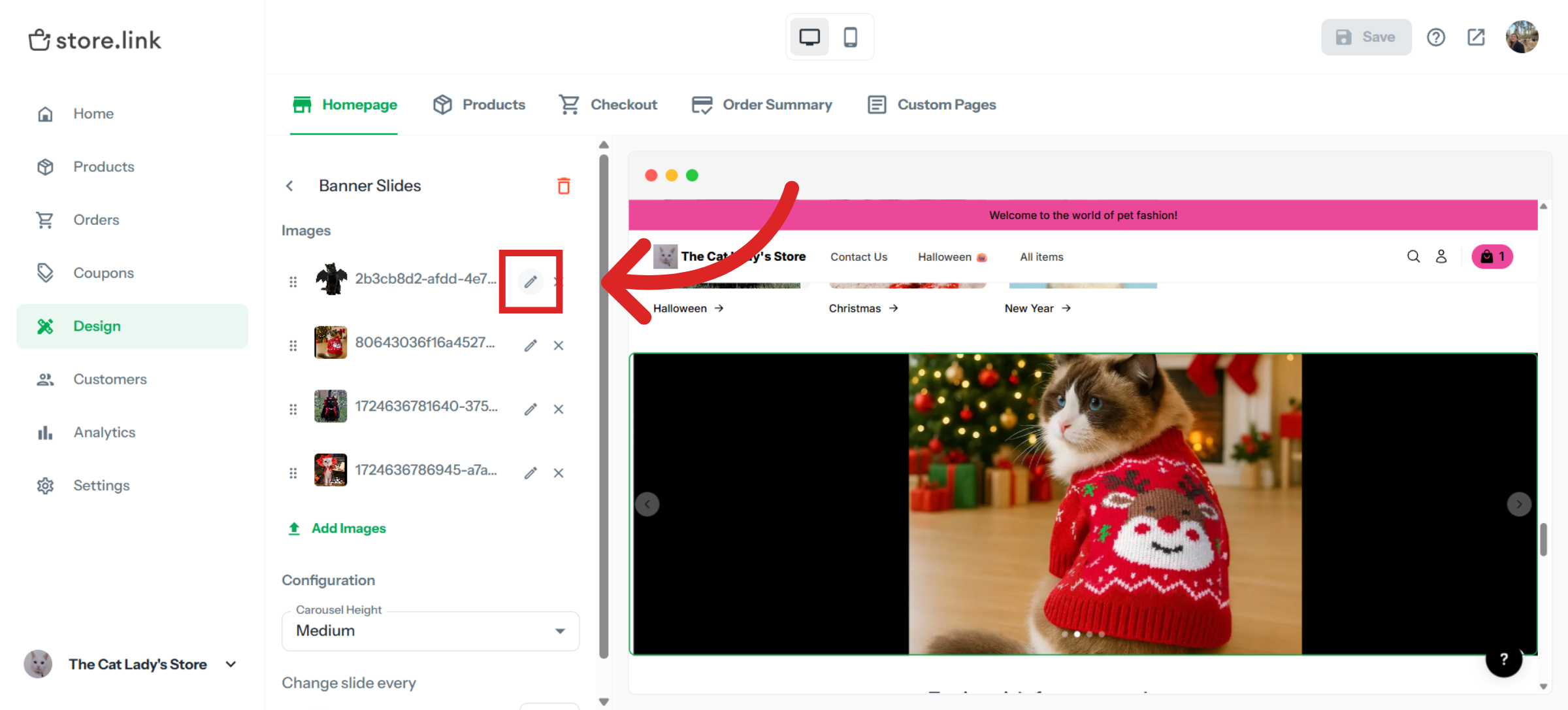
Click the pencil icon next to the banner slide you want to edit.
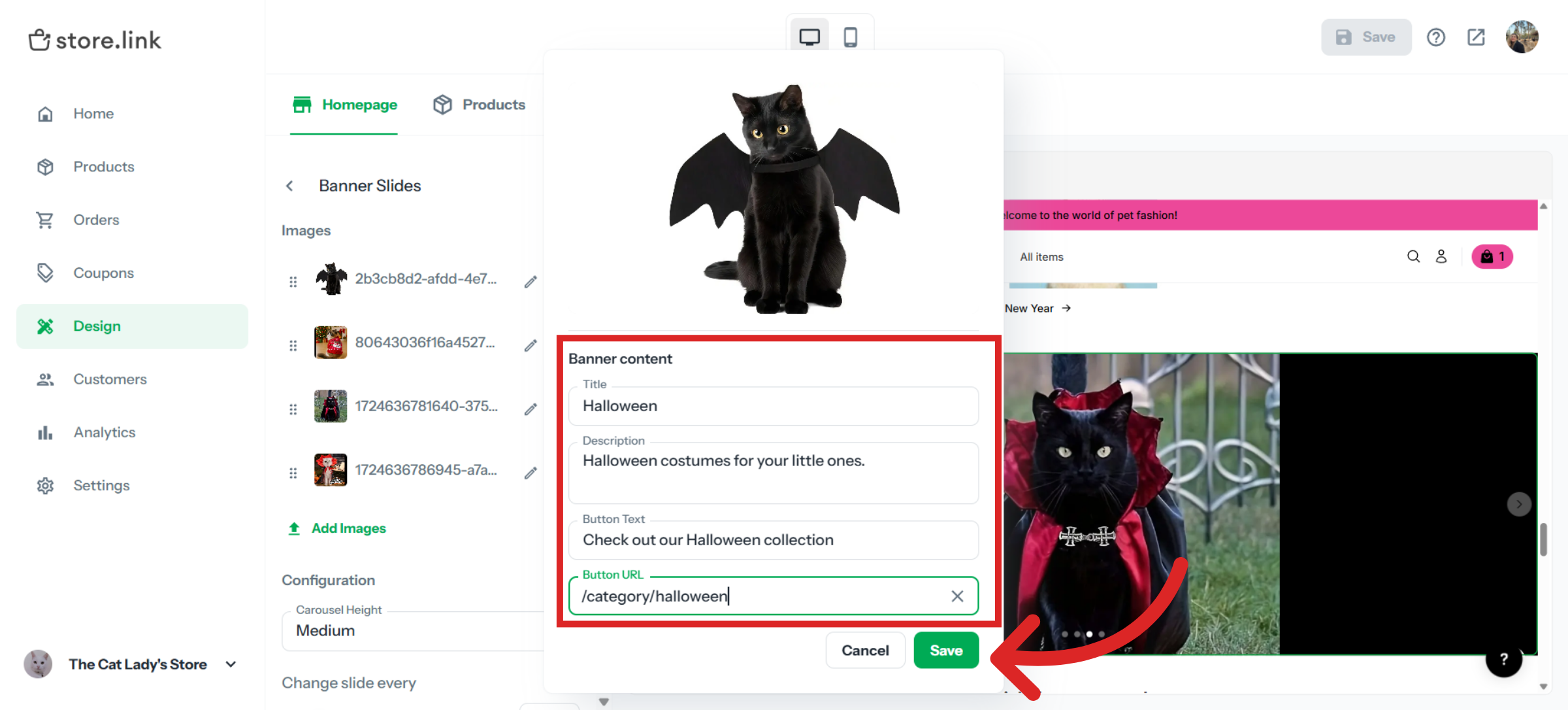
Enter the Title, Description, Button Text, and Button URL for your banner slide, then click Save.
Title | Add a title for your banner slide. |
Description | Add a short description to provide more information. |
Button Text | Enter the text you want to display on the button. |
Button URL | Enter the URL where you want visitors to be redirected when they click the button. |
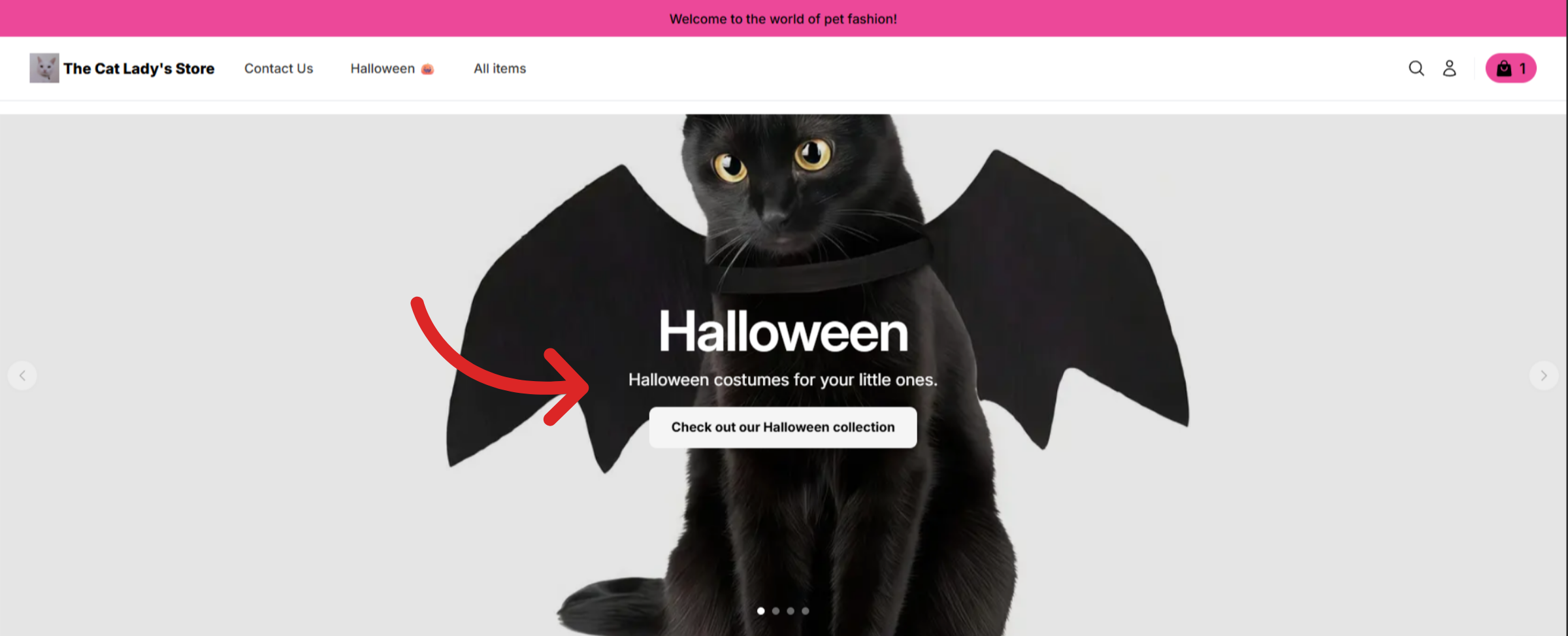
How it appears on your online store
Once saved, the title, description and button will appear on your banner slide. Visitors can click the button to open the URL you added.
Still need help?
Contact us